How to Change an Image on Hover in Squarespace (4 Methods, Updated)

This is one of my favorite pieces of CSS, and it's been on this blog a while. If you've used the original version from this post, good news: it almost certainly still works.
Unlike a lot of Squarespace tricks that quietly break when the platform updates its internal code, that snippet is plain HTML, an onmouseover and onmouseout swap, and browsers have honored that exact syntax for decades. It's not going anywhere.
What's actually changed is what a hover effect is expected to look like. An instant image swap reads a little dated next to a smooth crossfade, and the original method also has a small flicker on the very first hover, since the browser hasn't loaded the second image until that exact moment.
So this is an update in spirit more than a fix: the original method is still here below because it's genuinely the simplest way to do this, plus three newer options if you want something smoother, more native to Fluid Engine, or built entirely by AI in under a minute.
Once you've picked a method, you can get creative with where you use it. Team photos, before-and-afters, portfolio pieces, product shots, all fair game.

Method 1: The Classic Two-Image Swap (Original Method, Still Works)
Three steps, no CSS required, and this is exactly the method that's been on this post from the start.
Step 1 — Upload both images to Custom Files. From your left dashboard menu, go to: Website > Pages > Website Tools > Custom CSS, then scroll down and click Manage Custom Files. Upload the two images you want to switch between.
Step 2 — Copy the URL for each image. Still in Manage Custom Files, click the filename of the first image. A link populates at the top of your Custom CSS window, scroll up to find it. Highlight it, cut it (this removes it from Custom CSS and copies it to your clipboard at the same time), and paste it somewhere safe, a Notepad file or a blank email works fine. Repeat for the second image. You should now have two image URLs saved.
Step 3 — Add a Code Block and paste the snippet. Navigate to where you want the effect on your site and add a Code Block. Delete the default <p>Hello, World!</p> and paste this in:
src="First Image" onmouseover="this.src='Second Image'" onmouseout="this.src='First Image'">
Replace both instances of First Image with the URL of the image that should show before and after the hover.
Replace Second Image with the URL of the image that should appear during the hover.
Click Apply, then Save the page.
If it doesn't work right away, refresh and try again. If it's still not working, double-check you haven't dropped a character, and view the live page in a separate browser as a public visitor rather than inside your Squarespace editor.
Want the image clickable too? Wrap the whole tag in a link:
<a href="https://www.page-you-want-to-link-to.com">
<img src="First Image" onmouseover="this.src='Second Image'"
onmouseout="this.src='First Image'">
</a>
Click Apply and save. That's the entire original method, still valid today.
Example of the code in use here:

Method 2: The Same Two Images, With a Smooth Crossfade
If you'd rather the second image fade in instead of snapping in instantly, and you'd like to skip the first-hover flicker, this uses the exact two image URLs you already grabbed in Method 1's Step 2. Just swap out Step 3's code for this instead:
<div class="hover-swap">
<img src="First Image URL" class="hover-swap-base">
<img src="Second Image URL" class="hover-swap-alt">
</div>
<style>
.hover-swap { position: relative; width: 100%; max-width: 500px; }
.hover-swap img { display: block; width: 100%; border-radius: 4px; }
.hover-swap-alt { position: absolute; top: 0; left: 0; opacity: 0;
transition: opacity 0.4s ease; }
.hover-swap:hover .hover-swap-alt { opacity: 1; }
</style>
Adjust max-width to fit your layout. Both images load right away, so there's no flicker on first hover, just a clean fade.
Clickable version: wrap the whole <div class="hover-swap">...</div> block in an <a href="..."> tag, same as Method 1
So, it’ll look like this:

Method 3: Native Fluid Engine Image Blocks (No Code Block at All)
If you'd rather not touch a Code Block, this uses Squarespace's own drag-and-drop image blocks instead.
In Fluid Engine, add both images to the same section, and drag the hover image directly on top of the first so they line up exactly, then send it to the back.
Install a free Squarespace Block ID Finder browser extension and copy the ID of the top image block.
Go to Website > Website Tools > Custom CSS and paste this in, with your real block ID:
#block-XXXXXX { transition: 0.5s; }
#block-XXXXXX:hover { opacity: 0; transition: 0.5s; }
Hovering fades the top image out to reveal the one behind it.
One honest caveat: unlike Methods 1 and 2, this one does rely on Squarespace's internal block IDs, which is the kind of thing that can shift after a platform update.
If you want a version that's a little more future-proof, Method 2 is the safer long-term bet.
Also worth knowing, if you just want the image clickable and don't need the hover swap, Image Blocks have a native Link option built into their block settings, no code needed
Method 4: Skip Picking One, Ask AI to Build Your Exact Version
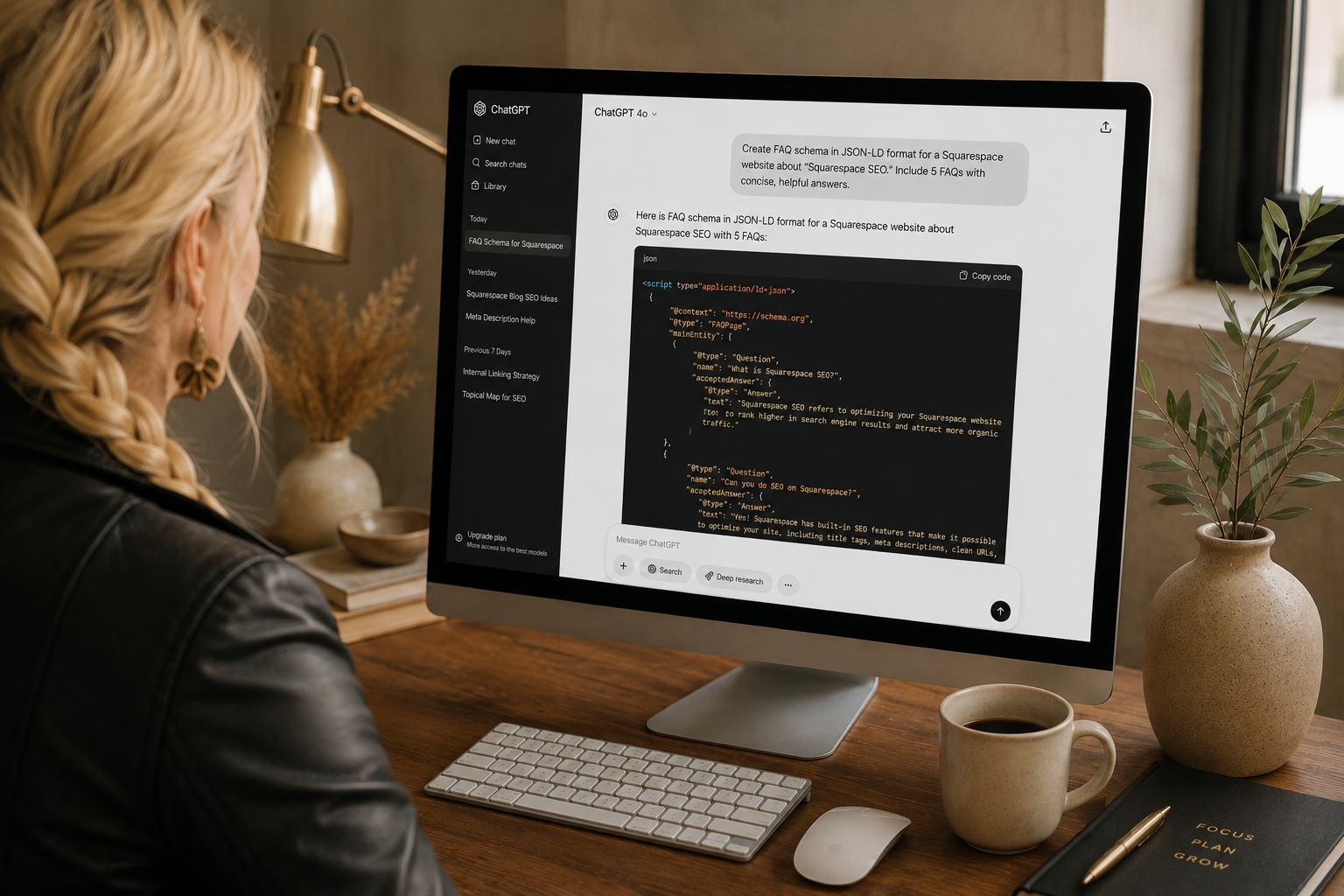
Rather than adapting any of the above by hand, you can hand the goal, or any of the snippets above, straight to Claude or another AI and get code customized to your specific site back in under a minute. A prompt like this works well:
I'm building a hover effect on my Squarespace 7.1 site using [a Code Block / Fluid Engine image blocks]. I want hovering over [describe your image] to [instantly swap to / smoothly crossfade into] [describe the second image], and I'd like it clickable to [your link]. Here's my current Custom CSS so you can check for conflicts: [paste your Custom CSS]. Give me the exact code to add and tell me where it goes.
Handing over your actual Custom CSS for a compatibility check is what matters most here, it's what skips the usual troubleshooting that comes from adapting a snippet built for someone else's setup.
A few things worth knowing
-
No, and that's by design, not a bug. Hover requires a mouse, and touchscreens don't have an equivalent, a tap is a click, not a hover. All four methods above are desktop-only enhancements
-
No. It's plain HTML, not a Squarespace-specific trick, so it holds up regardless of platform updates. If you're troubleshooting it, it's almost always a dropped character in the code rather than the method itself failing.
-
Yes, though at that point it's closer to a small slideshow than a hover swap, and the code changes meaningfully with a third image. Worth describing directly to an AI rather than adapting a two-image snippet by hand.
Voila, that's all four. I still love this effect, professional sites get a lot of mileage out of it for a more dynamic presentation, and there's plenty of room to have fun with it too. Let me know if you run into any trouble, and thanks for stopping by.

Written by: Tiffany Davidson, Squarespace Web Designer & SEO Expert
For the past decade-plus I've built nothing but Squarespace sites, the kind that actually hold up once the launch excitement wears off. I treat SEO/AIO and design as the same job instead of two separate ones, which is why client sites I build tend to land on page 1 across a genuinely wide mix of industries. If your site looks the part but nobody can find it, that's the exact gap I close. Get in touch with me here.

Written ByTiffany Davidson
Squarespace Web Designer + SEO Expert
For the past decade-plus I've built nothing but Squarespace sites, the kind that actually hold up once the launch excitement wears off. I treat SEO/AIO and design as the same job instead of two separate ones, which is why client sites I build tend to land on page 1 across a genuinely wide mix of industries. If your site looks the part but nobody can find it, that's the exact gap I close.