
4.1 SEO Title and Description Fields

Photo by Tiffany Davidson; Taken in Arches National Park near Moab, Utah
applying site-wide seo is easy with squarespace.
It’s finally time to move to on-site SEO work! Are you excited?! 🥂
We’ve done our research, filled out our SEO doc, and now it’s just a matter of adding the right keywords to the appropriate places within our site.
To help demonstrate this, I’ll be creating a brand new site for the Monterey Wedding Photography example we’ve been using. I’m going to share my screen in a video below so you can watch every single step.
But first, let’s optimize the general SEO title formats for our site.
To begin, login to the backend of your site as always ( via account.squarespace.com ) and select the site you are working on (this is obvious for most of you, but I’m including this in case you’re brand new to Squarespace).
Once you’ve logged in to the backend of the site, you’ll see a dashboard menu on the left.
The first thing we want to do to fill in site-wide SEO fields is add our Site Title and Tag Line. To do this, you’ll hover over your main site title or logo and click EDIT.

2024 update: this is now how we get to the Site Title
On the left side menu, you’ll now see fields for both your Site Title and Tagline.
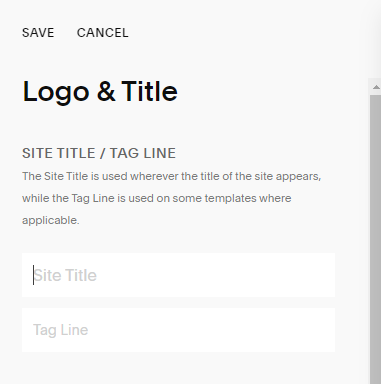
Fill in your site title, which is typically the name of your business. Keep in mind that this will show at the top of your site if you don’t replace with a logo image.
Below that, add your tag line. The tag line will not show unless you set it to show in your header navigation settings, and I recommend using your most descriptive keyword, something that really encompasses everything you do.
In our Monterey Wedding Photography example, I’ve pretended that my business name is California Clicks (I know- incredibly cheesy) and I’ve added a simple tag line below.
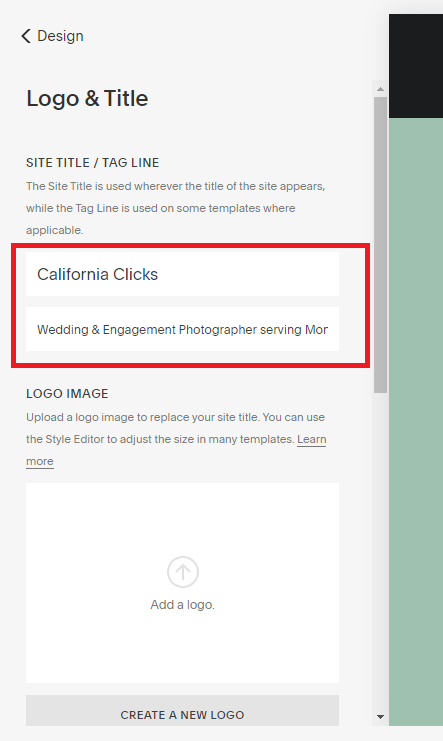
Be sure to click Save once you have those fields filled out.
Now let’s go back to the main menu in our Squarespace site. (To return to the main menu, click the < DESIGN link up top to go back, then click < WEBSITE to go back once more, and then < HOME.)
From here, we need to fill in some really important site-wide SEO fields.
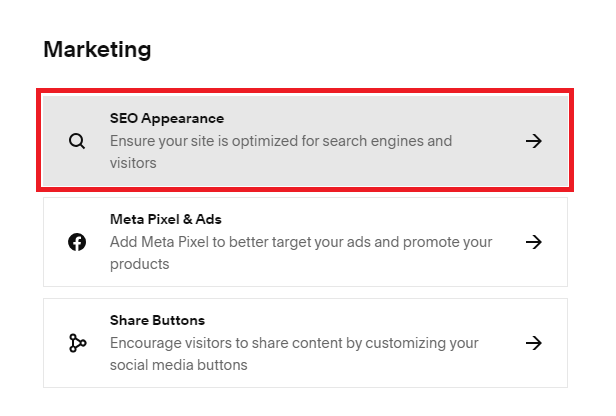
Go to Settings > Marketing > SEO Appearance:
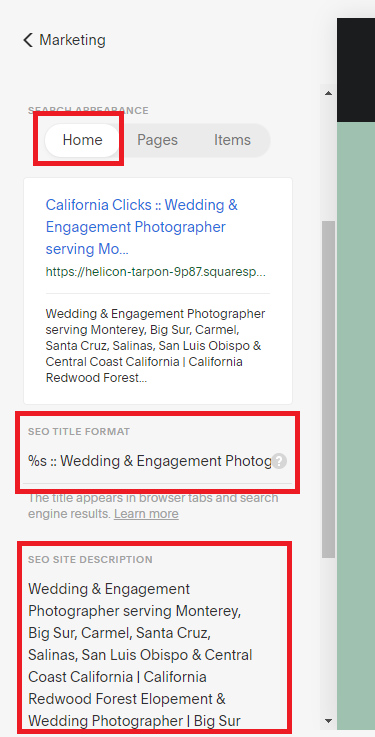
Scroll down just a bit and you’ll see Search Appearance with three different tab options: Home, Pages, & Items. Let’s focus on the Home tab first, which will automatically be selected already.
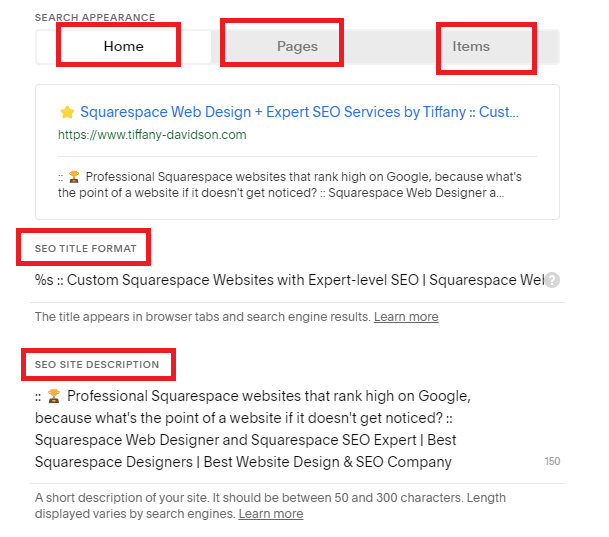
Update, February 2024: Please note, I have to update these images every so often because Squarespace is constantly changing their menu and interface, so some images in this course will be from my main website (not our California Clicks website).
Below that, you’ll see a field for SEO Title Format. In this field you want to copy your site meta title description from your SEO doc and paste it into this field, right after the %s. This %s stands for the site title, (which I always leave there because I want it to show in front of my site description), then add two colons (my own design styling preference- feel free to use a dash or any other divider you please), followed by your site meta title description. This is what will show in your browser tab as well as when your site is shared on social media platforms.
Once you’ve done this, move to the field below that entitled SEO Site Description. Paste your site meta title description (from your SEO doc) into this field.
Be sure to save all of your changes!
Screenshare demonstration
(Shows updated interface as of Aug 2024)

Welcome to Squarespace SEO Expert! In this course I'm going to teach you the exact process I use to rank Squarespace websites on Google Page 1, using no paid advertising, only organic SEO techniques. If at any point you have questions, please use the comment feature at the bottom of the particular lesson you have a question about. I'm happy to help!

-
1. Introduction
- Mar 2, 2020 1.1 Welcome!
- Feb 3, 2020 1.2 What Is SEO? Why Is It Important?
-
2. Anwering Questions
- Jan 3, 2020 2.1 Necessary Initial Questions
-
3. Keyword Research
- Dec 3, 2019 3.1 Discover What Your Target Audience Is Searching For
- Nov 3, 2019 3.2 Using Suggested Keywords
- Oct 3, 2019 3.3 Keyword Planner Tool
- Sep 3, 2019 3.4 High-Intent Keywords
- Aug 3, 2019 3.5 Generating Blog Post Topics
- Jul 3, 2019 3.6 Site Meta Title & Description
-
4. Applying On-Site SEO
- Jun 3, 2019 4.1 SEO Title and Description Fields
- May 3, 2019 4.2 Optimizing Image Files Before & After Uploading
- Apr 3, 2019 4.3 On-Page SEO
- Mar 3, 2019 4.4 Understanding The Sitemap
- Feb 3, 2019 4.5 Blogging For SEO
-
5. Moving Forward
- Jan 3, 2019 5.1 Using Google Search Console
- Dec 3, 2018 5.2 Consistent SEO Blogging
- Nov 3, 2018 5.3 Adding New Content
- Oct 3, 2018 5.4 Epilogue
Copyright
© 2020-2024, All Rights Reserved
All content in this course is created and owned by me and cannot be used or sold elsewhere. Thank you for appreciating and valuing my work and experience.